Showing posts with label HowTo. Show all posts

Thursday, March 7, 2013

How to install DPM2012 SP1 on W2K12 with Local SQL 2012 SP1 instance

In the previous post here, I show you how to install DPM 2012 on W2K8R2 OS with local SQL 2012 SP1 instance. On this post I will do the same on W2012 OS. The good news is that this is exactly the same procedure :)

Before you begin installation, make sure that features .NET Framework 4.0 and .NET Framework 3.5 are installed.

Step 1: Install SQL2012 SP1 with Reporting Service on your DPM server
Launch your SQL 2012 SP1 DVD or ISO.

# Feature Selection, you need to select:
  • Database Engine Services
  • Reporting Services - Native
  • Management tools - Basic / Complete (Optional)


# Instance Configuration :
  • Named Instance: YourSQLNamedInstance (e.g LOCALDPM)


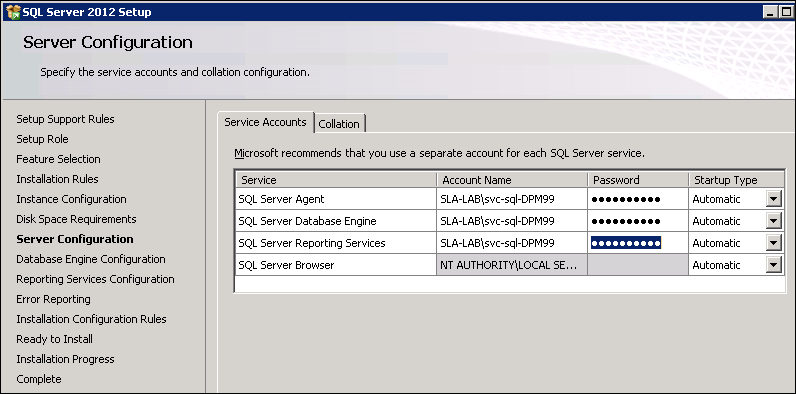
# Server Configuration: It's a sandbox, so for SQL accounts, I will use the same domain account for each role.


# Database Engine Configuration :
  • Choose your Authentication mode : Windows authentication mode
(You may choose Mixed mode if you want, you will have to provide a password for SA account) 
Don't forget to add your account or your group to be SQL server administrators.


# Reporting Services Configuration :
  • Choose Install and configure

Then Next, Next, Next, Install... :)


Step 2: Now it's time to Install DPM 2012 SP1
Launch your DPM 2012 SP1 DVD or ISO.

# Prerequisites check: Select Use an existing Instance of SQL Server 
Type the name of your SQL instance: YourDPMServerName\YourSQLInstance
Then click on Check Again


If you passed prerequisite check, the "Next" button is no more Grey-out, Click on Next


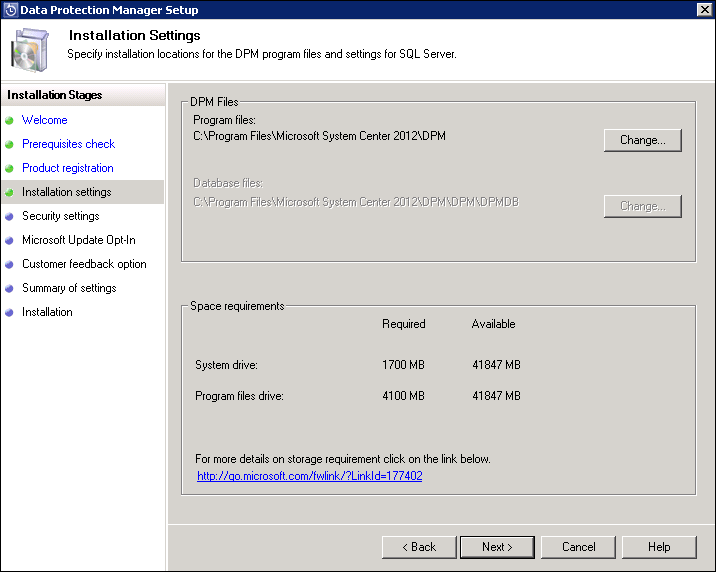
# Installation Settings: Click on Next (again)


 # Summary of Settings: Review Summary of Settings and click Install


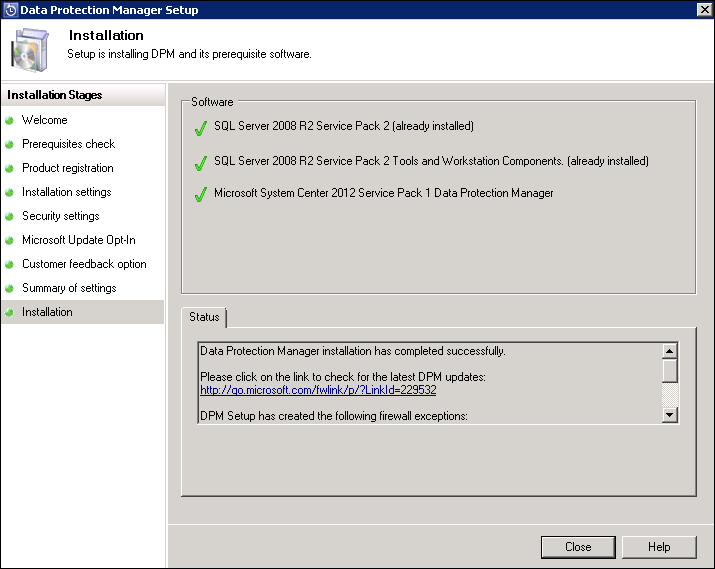
# Installation: Completed successfully.


At last, you may take a look in the SQL Server Management Studio. Yes your DPM DB is here. Good Job :)


Sunday, February 10, 2013

How to install DPM2012 SP1 on W2K8R2 with Local SQL 2012 SP1 instance

When you want to use DPM 2012 local SQL instance, you most likely let DPM to install SQL Server 2008 R2 from the System Center 2012 DVD and host the DPM database on this instance.

Nethertheless you can use an existing local instance of SQL 2012 Server on the computer that you are installing DPM. In this post I will show you how to install DPM 2012 SP1 (On W2K8R2 OS) using local SQL 2012 SP1 instance.

Step 1: Install SQL2012 SP1 with Reporting Service on your DPM server
Launch your SQL 2012 SP1 DVD or ISO.

# Feature Selection, you need to select:
  • Database Engine Services
  • Reporting Services - Native
  • Management tools - Basic / Complete (Optional)


# Instance Configuration :
  • Named Instance: YourSQLNamedInstance (e.g LOCALDPM)


# Server Configuration: It's a sandbox, so for SQL accounts, I will use the same domain account for each role.


# Database Engine Configuration :
  • Choose your Authentication mode : Windows authentication mode
(You may choose Mixed mode if you want, you will have to provide a password for SA account) 
Don't forget to add your account or your group to be SQL server administrators.


Step 2: Now it's time to Install DPM 2012 SP1
Launch your DPM 2012 SP1 DVD or ISO.

# Prerequisites check: Select Use an existing Instance of SQL Server 
Type the name of your SQL instance: YourDPMServerName\YourSQLInstance
Then click on Check Again


If you passed prerequisite check, the "Next" button is no more Grey-out, Click on Next


# Installation Settings: Click on Next (again)


 # Summary of Settings: Review Summary of Settings and click Install


# Installation: Your installation will failed :) Because you need to install SQL 2K8R2 SP2...


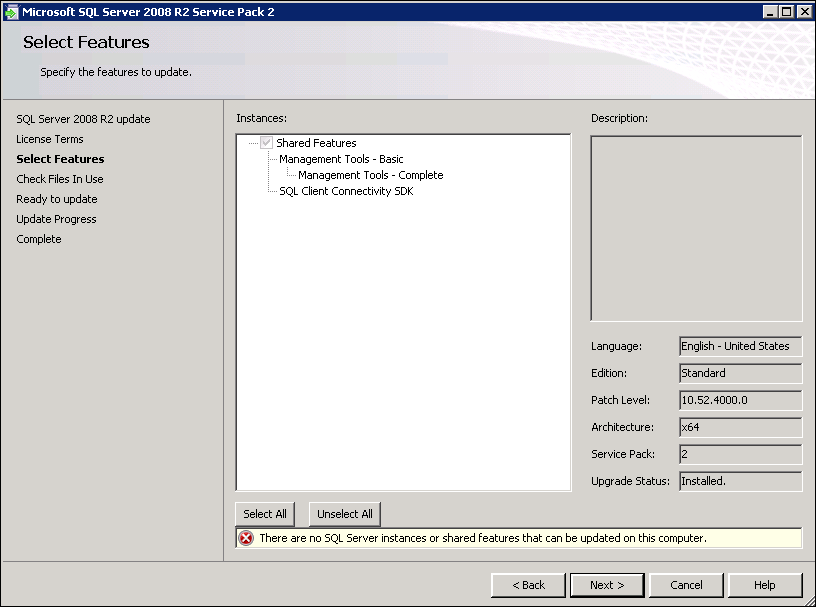
Not really, because if you try to install SQL2K8R2 SP2, wizard will tell you that your SQL components are already upgraded.


So just launch again DPM 2012 SP1 installation and this time you won't get any error message. Installation has completed successfully :)


At last, you may take a look in the SQL Server Management Studio. Yes your DPM DB is here. Good Job :)


Tuesday, October 9, 2012

HowTo : Configure DPM to use an SMTP server that does not require authentication

To use a SMTP server that does not require authentication to send DPM notifications you have to follow these steps: (works on DPM2010 & DPM 2012)

First you should verify that your DPM server is allowed to relay on your SMTP server.

If you are using Microsoft IIS, you will find this security settings in IIS MMC  by right-clicking SMTP virtual Server then Properties. Select Access tab / Relay restriction  / Relay. Check box Only the list below , then click Add and provide IP, Subnet or Domain Name.

In the DPM Administrator Console go to the Monitoring tab / Options / SMTP Server and fill in SMTP settings according to your environment:
  • SMTP server name: YourSMTPServer
  • SMTP Server Port: 25
  • From Address: Address of the sender

Important: You must also fill in Authenticated SMTP server fields.

Why ? Because DPM requires ALL the fields under the SMTP Server options to be filled in regardless if your SMTP server accepts anonymous connections or not.  if your SMTP server does not require authentication the credentials are useless, it's just that GUI is expecting all fields to be filled in.

The GUI could have been more precise or at least a mouse over option might help. Technet article is also a little bit unclear... http://technet.microsoft.com/en-us/library/hh758196.aspx :)


If you click on Send Test E-mail without filling in Username or Password, you will receive the following error: ID: 2013 Details: Logon Failure: unknown user name or bad password.

If you fill in a Username and Password of a local DPM account (No administrative rights) and try to send a Test E-mail again :


DPM will ask you to provide the e-mail address to sent the test message: 


Then after clicking on Send button.

You will receive a new message: An E-mail message has been successfully sent to ...


Good job, finally open your mailbox and verify that you receive the test message.

Tuesday, October 2, 2012

HowTo install .NET Framework 3.5 on Windows 2012

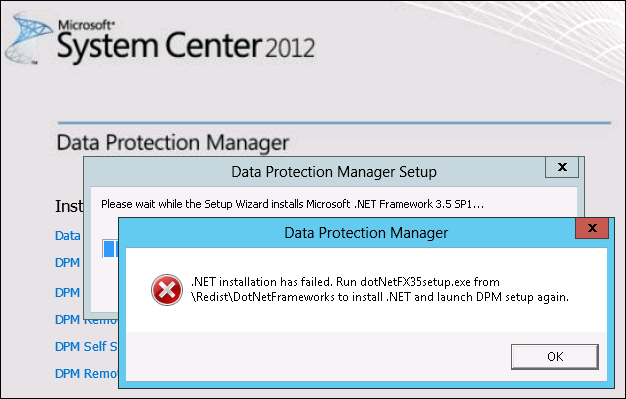
When you try to install DPM 2012 on Windows 2012 server, .NET Framework 3.5 is a prerequisite and could not be installed directly by DPM.


If you try to install .NET Framework 3.5 from your DPM 2012 ISO/DVD folder SCDPM\Redist\DotNetFrameworks\DotNetFx35setup, this does not work either:


If you have Windows 2012 iso/DVD, you can install .NET Framework 3.5 by following these steps:

1. Insert Windows Server 2012 DVD or iso to  drive.
2. Open Add Roles and Features Wizard
3. Select .NET Framework 3.5 Features and then click next,
4. Select Specify an alternate source path link in the Confirm installation selections screen.


5. Path: :\Sources\SxS and then click OK.


6. Finally click Install button.

If you don't Specify an alternate source path link, you will have this error message :
The request to add or remove feature on the specified server failed. Installation of one or more roles, roles services, or features failed. The parameter is incorrect. Error: 0x80070057


Now you can installed DPM 2012 on Windows 2012.